

Screenshots and GUI testing
hobo screenshot saves a PNG of a guest’s desktop, and hobo exec --gui runs a command in the
guest’s desktop session, so UI tests run inside a clean VM over SSH. Nothing on the host takes
focus, and no window needs to be open: a headless VM keeps its display at full size.
$ hobo screenshot ubuntu/Users/me/ubuntu-20261108-162240.png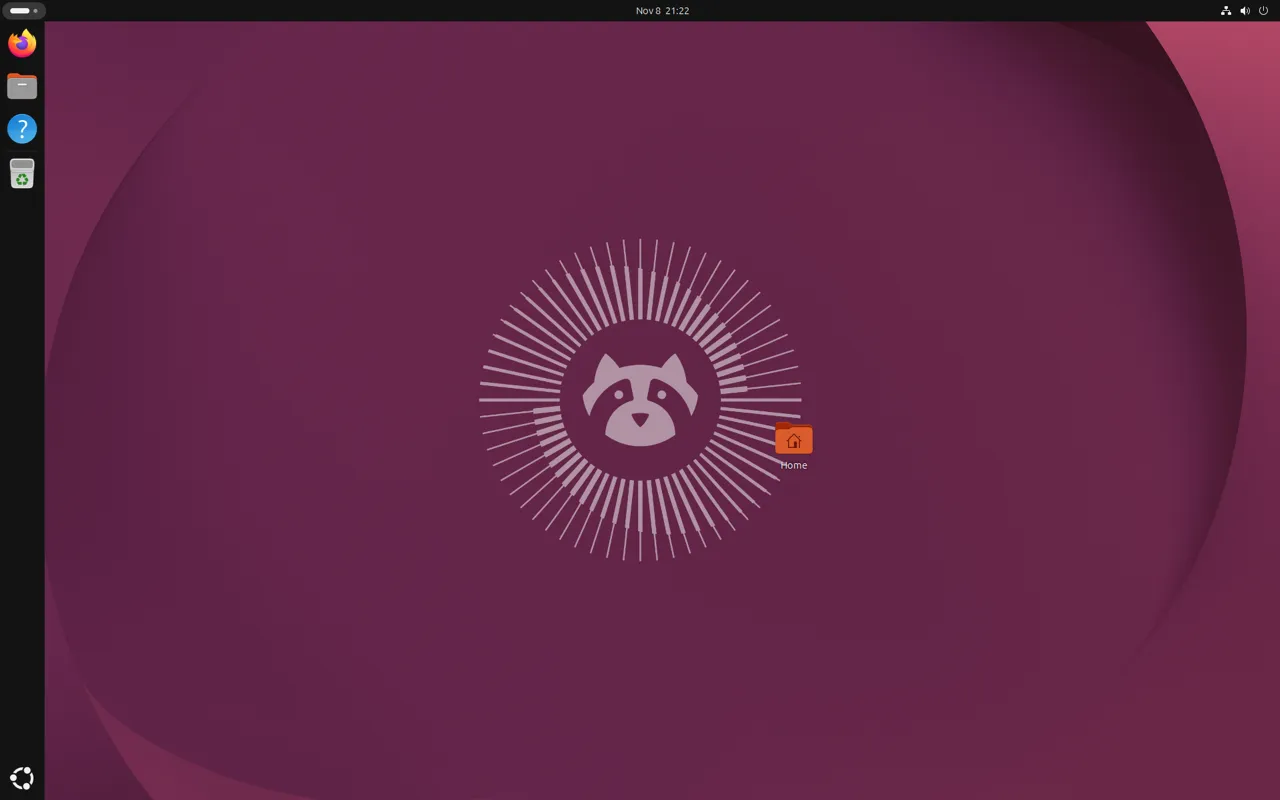
Screenshots
hobo screenshot dev # a new dev-<timestamp>.png herehobo screenshot dev shot.png # that file, replacing it (or -o shot.png)hobo screenshot dev - | open -f -a Previewhobo screenshot dev --crop 840,412,400,300 # only that rectangle: x,y,width,height--crop keeps one rectangle of the screen, in screenshot pixels from the top left. It also takes a
frame the way hobo ui snapshot prints one, so an element’s or a window’s frame
can be pasted in: --crop "840,412 400×300". A rectangle that reaches past the screen keeps the
part that’s on it.
The capture runs inside the guest’s desktop session, which each guest needs:
| Guest | Needs |
|---|---|
| macOS | A VM built from a recipe with [gui_testing] |
| Linux | A desktop: hobo init --os linux adds one; --server leaves it out |
| Windows | Nothing more: hobo is logged in at boot |
Run in the desktop session
hobo exec dev --gui -- open -a TextEdithobo exec dev --gui -- osascript -e 'tell application "System Events" to keystroke "hello"'A plain hobo exec runs in a background session that can’t see the desktop. --gui runs the
command in hobo’s desktop session instead, waiting up to a minute for it to come up, and exits
with status 125 if it never does.
On macOS, a privacy prompt raised by what --gui runs (Photos, Automation and the like) names
hobo-agent as the app asking, not the command: macOS holds the agent responsible for what it
starts, so the prompt can’t show the program’s own usage text, and what the prompt
grants goes to hobo-agent.
Drive an app with hobo ui
hobo ui drives a macOS, Linux or Windows guest’s apps through accessibility, from the host, with
nothing to install in the guest (a macOS guest needs macOS 27; exec --gui and screenshot work on
older ones). snapshot prints an app’s windows as a tree, each element with a ref to act
on:
$ hobo exec dev -- open -a TextEdit$ hobo ui dev wait --app TextEditTextEdit is running with a window$ hobo ui dev snapshot --app TextEditapp TextEdit (com.apple.TextEdit) pid 628- window "Untitled" [e1] (213,86 586×488) - scrollarea [e2] (213,154 586×420) - textbox [e3] #First Text View (213,186 586×382) focused - group "Formatting" [e22] (213,118 586×36) - checkbox "bold" [e23] (221,127 22×20) unchecked …$ hobo ui dev type "Hello" --into e3 --app TextEdit$ hobo ui dev menu "Format > Font > Bold" --app TextEdit$ hobo ui dev wait --text "Hello" --app TextEditA Linux guest takes the same commands, against GNOME’s apps:
$ hobo exec ubuntu --gui -- gnome-text-editor$ hobo ui ubuntu type "Hello" --app org.gnome.TextEditor$ hobo ui ubuntu key ctrl+shift+s --app org.gnome.TextEditor$ hobo ui ubuntu choose ~/Documents/hello.txt --app org.gnome.TextEditorAnd a Windows guest, against its apps:
$ hobo exec win --gui -- powershell.exe -Command 'Start-Process notepad'$ hobo ui win type "Hello" --app notepad$ hobo ui win menu "File > Save as" --app notepad$ hobo ui win choose 'C:\Users\hobo\Documents\hello.txt' --app notepad| Command | Does |
|---|---|
snapshot |
Prints the tree, open context menus and their submenus included. --all adds offscreen elements and long lists in full, --root e12 one subtree, --depth N fewer levels. --role textbox lists just the elements of that role, offscreen ones included, without the tree |
at <x,y> |
What’s at a point read off a screenshot: the element there and the elements it’s in, with refs, in whichever app it is, and a menu open elsewhere that a click there would close |
click <ref|x,y> |
A real click at the element’s centre once windows over it stop animating in or out, failing if something covers it, and warning when a menu open elsewhere likely swallowed it. --text Remove clicks the one element showing exactly that text, --contains matches part of it instead, --role menuitem narrows it, and --in e30 looks only inside that element (the list, not an inspector showing the same name). --right, --double, --mods cmd,shift; --press performs the element’s default action instead |
drag <from> <to> |
A real drag, pausing over the target before it drops |
scroll <ref|x,y> <direction> [lines] |
Scroll wheel events; scroll --to e40 brings an element into view |
type <text> [--into ref] |
Types text where the cursor is, whatever the keyboard layout. --replace selects all first, so the text replaces what the field had |
key <cmd+k> |
Presses a key with modifiers. Keys are named as typed or by name: cmd+- or cmd+minus, cmd++ or cmd+plus, return, escape, left, f5 |
menu "File > Save" |
Chooses a menu item, failing if it’s disabled; menu File lists the items with their shortcuts. Titles are as the open menu shows them, such as Undo Typing. A macOS app’s menu bar is menu’s alone: snapshot and click --text leave it out |
choose <path> |
Chooses a file or folder in the open or save panel an app is showing: waits up to 5 seconds for the panel, so it can follow the click that opens it, goes to the path, then clicks Open or Save. On Linux it uses the file chooser’s location bar, including GNOME’s save dialog, which runs in Files’ process; on Windows the dialog’s File name box |
wait |
Waits for --ref, --text (which matches part of an element’s text, as click --text --contains does, and --role button narrows) or --app, or with --gone for it to go. On a timeout it prints the snapshot, and a --gone wait names the element still there: a hidden view can still be an accessibility element |
- Refs keep their numbers across snapshots while the element is there, so
e12from an earlier snapshot still means the same thing. One that has gone fails as stale rather than clicking whatever took its place. Give the controls of an app you’re testing accessibility identifiers (the#saveButtonafter a ref), and its refs survive layout changes. - A snapshot line is the element’s role,
"name",[ref],#identifier,= "value",(x,y width×height)and its states (disabled,focused,selected,checkedorunchecked), in that order and leaving out what the element hasn’t got:textbox "Name" [e14] #nameField = "Untitled" (420,180 240×22) focused. To find an element from a script, ask for it (snapshot --role textbox,click --text,wait --text) rather than match lines of the whole tree. - Roles are ARIA role names (
button,textbox,menuitem,checkbox), pluswindow,textandscrollarea, so--rolemeans the same in every guest;--jsonalso gives the platform’s own role (AXTextArea). A text field is atextboxand a pop-up button acombobox; a--rolenothing has fails listing the roles that are there. - Coordinates are screenshot pixels, the same as in a
hobo screenshotPNG. --apptakes an app ID (a bundle ID such ascom.apple.TextEdit, a desktop app ID such asorg.gnome.TextEditor, a Windows AUMID or exe name such asnotepad), a name orpid:<n>; without it, the frontmost app. File Explorer’s folder windows and its shell are bothexplorer, so give the window’spid:<n>.- Shortcuts are the guest’s own:
cmd+son macOS,ctrl+son Linux and Windows. --jsonprints any command’s result as JSON, failures included.- Each call takes about a third of a second. A macOS VM needs
[gui_testing]; a Linux desktop VM is set up for it by its recipe’s desktop step, and a Windows VM needs nothing. - GTK 4 lists build rows only for what’s on screen, so in a Linux snapshot a long list’s rows come and go as it scrolls.
- To launch an app with environment variables or arguments, use
hobo exec dev -- open -n --env KEY=value /Applications/App.app --args ….
Driving the UI yourself
-
macOS:
[gui_testing]in the recipe grants Accessibility, Screen Recording and System Events automation to hobo’s guest agent,osascript,screencaptureand Terminal, sohobo ui, AppleScript and XCUITest work with SIP still on.allowadds your own test runners by path or bundle ID:[gui_testing]enabled = trueallow = ["com.example.AppUITests.xctrunner"]A VM built this way, and its clones, show
"guiTesting": truein their config inhobo list --json. -
Linux: the desktop has accessibility on for AT-SPI, with the Python bindings installed, and the
hobouser can send input through/dev/uinput, whichhobo uiuses. -
Windows: UI Automation, which
hobo uiuses, and frompowershell.exein the desktop session.
Test in a clean copy every time
Build a VM once with everything your tests need, then run each test in an ephemeral clone that deletes itself afterwards:
vm=$(hobo start ui-base --ephemeral --json | jq -r 'select(.event=="result").result.name')hobo cp ./build "$vm":/tmp/hobo exec "$vm" --gui -- /tmp/build/run-ui-testshobo screenshot "$vm" failure.pnghobo stop "$vm"